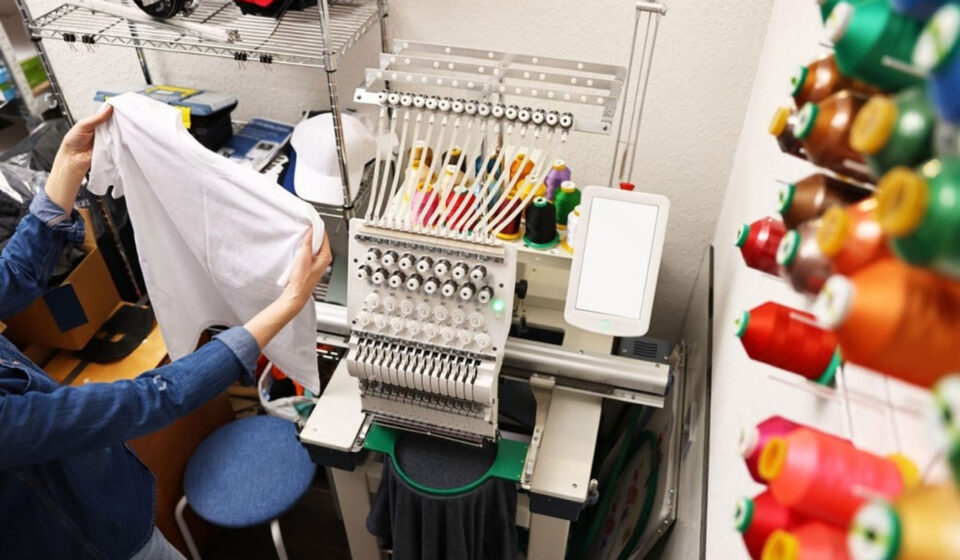

You know that sinking feeling. You have hooped the fabric perfectly. The stabilizer feels right. The Pfaff machine is humming along, and you are watching your business logo come to life, thread by thread. Then it happens. The outline of the circle suddenly jumps three millimeters to the left. Or the machine starts punching the same spot repeatedly until the needle snaps and leaves a nasty hole in the middle of your design. You sit there, staring at the disaster, wondering where it all went wrong. The problem almost never lives in your Pfaff machine. The problem lives in the file you fed it. To avoid this heartbreak, you must Convert Logo to PCS Embroidery File the right way. Not just any way. The way that accounts for the unique personality of Pfaff hardware. A stitch error is not just a minor inconvenience; it is a time thief and a fabric destroyer. Let us strip away the mystery and talk about how you get from a flat image on your screen to a flawless, stitched-out logo with zero drama.
The Hidden Complexity of the PCS Format
The PCS format is the native tongue of Pfaff embroidery machines. It stands for Pfaff Creative System. If you own a Pfaff Creative Vision, Creative Sensation, or even some of the newer Icon models, you likely interact with this file type regularly. But here is something many new embroiderers do not realize: PCS is not just a simple list of coordinates. It is a container file that often holds more data than standard formats like DST or PES.
A PCS file can contain specific instructions for thread tension adjustments, unique color palettes tied to Pfaff thread charts, and even proprietary settings for the machine’s built-in camera or positioning system. When you use a generic converter to spit out a PCS file without understanding this structure, the file often arrives at the machine with “corrupted” or missing metadata. The machine tries to read the stitches but gets confused about where the trims should happen or how fast to move the hoop. This confusion manifests as those dreaded stitch errors—the jumps, the gaps, and the thread breakage that drives you up the wall.
What Actually Causes a “Stitch Error” in a Logo?
Before we fix the problem, we need to diagnose the disease. When people complain about stitch errors in a converted logo, they are usually describing one of three specific failures. Understanding these failures is your first line of defense.
The first is misregistration. This is when the fill color is finished, but the black outline that goes around it ends up sitting partially inside the color and partially on the bare fabric. It looks like a cheap knockoff of your own logo. This happens because of “pull compensation.” Fabric moves. The needle pushes and pulls the material as it sews. If the digitizer does not program the design to account for this shift, the stitches end up exactly where they were told to go mathematically, but the fabric is no longer in that spot physically. Your Pfaff machine sewed the stitches perfectly; the map was just wrong for the terrain.
The second error is density overkill. Logos often have overlapping elements. Maybe you have a shield shape behind a text banner. An amateur conversion will stack those stitch counts on top of each other. By the time the machine gets to the third layer, the needle is trying to force its way through a concrete slab of thread. The Pfaff’s powerful motor will try its hardest, but eventually, the needle deflects, the timing gets thrown off, and you get a massive bird’s nest of thread under the hoop or a broken needle alert.
The third error is the dreaded “short stitch” syndrome. Some auto-converters place stitches that are fractions of a millimeter long. A Pfaff machine is fast and precise, but those tiny stitches confuse the thread feed mechanism. The thread cannot spool off the cone fast enough to keep up with those micro-movements, leading to constant thread snaps.
The Proper Path: From Image to Flawless PCS
So, how do you sidestep this minefield? You take control of the conversion process, either by understanding what to ask for from a pro or by learning the right steps yourself. Let us assume you are using a digitizer or a service. You do not just say, “Here is my logo, make it PCS.” You provide specific instructions that preemptively eliminate errors.
First, you need to specify the fabric type. This is non-negotiable. A logo for a stretchy polo shirt requires a very different “underlay” (the hidden foundation stitches) than a logo for a stiff denim jacket. If you do not tell the digitizer, they default to a medium-weight woven setting. That default setting will cause puckering and misalignment on knits. You want to avoid that error? Tell them exactly what you are stitching on.
Second, you request a specific stitch angle for the fill areas. If the entire logo sews in a uniform 45-degree angle, the fabric will pull in a uniform direction, and the registration will be easier to control. If the digitizer gets fancy and changes angles six times inside a small logo, the push-pull forces become chaotic, and the Pfaff machine struggles to keep everything lined up.
Third, you ask for an inspection of the jump stitches. A professional PCS conversion should include “trims.” That means the machine cuts the thread when moving from the letter “A” to the letter “B” rather than dragging a long, messy thread across the fabric. Auto-converters are notorious for skipping these trim commands in PCS files because the software doesn’t know the Pfaff trim command code.
The Power of Underlay: Your Secret Weapon Against Errors
If there is one single concept that separates a stitch-error-free PCS file from a disaster, it is underlay. Let me explain this in plain English because it changes everything about your final result.
Underlay stitches are the ones you never see on the finished logo. They sew first, directly onto the stabilizer or fabric. Think of them as the concrete footings you pour before building a house. They stabilize the fabric and give the top stitches something to grip onto. Without underlay, the top stitches of your logo just sit on the fuzzy surface of the shirt like a toupee in a windstorm. When the next color sews adjacent to it, the first color shifts, and boom—you have a gap or an overlap.
For a Pfaff PCS file, you want a digitizer who uses edge-run underlay and zig-zag underlay strategically. Edge-run underlay is a simple line of stitches that runs right along the border of where a satin stitch will be. It prevents the satin border from sinking into the fabric. Zig-zag underlay is a wider, looser stitch that covers the entire fill area, locking down the material fibers so the dense fill on top doesn’t distort the shape. When a file includes proper underlay parameters, the Pfaff machine sews it like a dream. The hoop moves smoothly, the tension stays consistent, and the final logo looks crisp and professional. You completely avoid the “wavy border” error that plagues cheap conversions.
Testing Your File Before Committing to the Good Shirt
You can have the best digitizer on the planet and still want to verify the file before you risk a customer’s garment. This is where a cheap piece of practice fabric saves you a fortune. I am a huge advocate for running a “sew-out test” on similar material.
Take that PCS file you just got back, load it onto a USB stick, and pop it into your Pfaff. Do not hoop the expensive dry-fit polo. Hoop a scrap of old t-shirt with a piece of cutaway stabilizer. Watch the sequence carefully. Do the colors overlap correctly? Does the machine pause for a thread trim where you expected it to? Does the needle struggle to penetrate at any point? If the test stitch looks perfect, you have just guaranteed a stitch-error-free experience on the final garment. If you spot a minor misalignment on the test, you have saved yourself the agony of ruining a piece of apparel that costs fifty bucks or more.
Software Options That Respect Pfaff Precision
If you want to bring the conversion process in-house to maintain total control, you need to be selective about your software. Not all digitizing software handles the PCS format with the same level of care. Some programs “save as PCS” by essentially wrapping a DST file in a PCS wrapper. This is a dirty little secret in the software industry, and it is the root cause of many random stitch errors on Pfaff machines.
If you are serious about DIY, look for software that specifically advertises native Pfaff support. Programs like Embird (with the Pfaff plugin) or the official Pfaff Premier+ software are built to understand the exact communication protocols of the Creative system. They write the trims, the stops, and the color changes in a language the machine understands natively. Yes, these programs cost more than a free online converter, but they pay for themselves in the absence of frustration. With these tools, you can manually adjust the pull compensation up or down by fractions of a millimeter until the design fits together like a puzzle. You can preview the stitching in “slow redraw” mode to see exactly where the needle will travel, catching potential short stitches before they ever become a physical problem.
Conclusion
A stitch error on a Pfaff machine is rarely the machine’s fault. It is almost always a communication breakdown between the person who drew the logo and the software that translated it into PCS language. By understanding the specific demands of the Pfaff system, the importance of underlay, and the need for proper pull compensation, you position yourself to receive files that sew out flawlessly.
Whether you outsource to a skilled digitizer who knows their way around a Pfaff menu or you invest in learning the software yourself, the goal is the same: a smooth, quiet, and accurate stitch-out that makes your logo look expensive. Do not settle for a file that just happens to end in “.pcs.” Demand a file that respects the engineering inside your machine. When the conversion is done right, you will stand back, look at that perfectly stitched logo, and wonder why you ever put up with the errors in the first place.