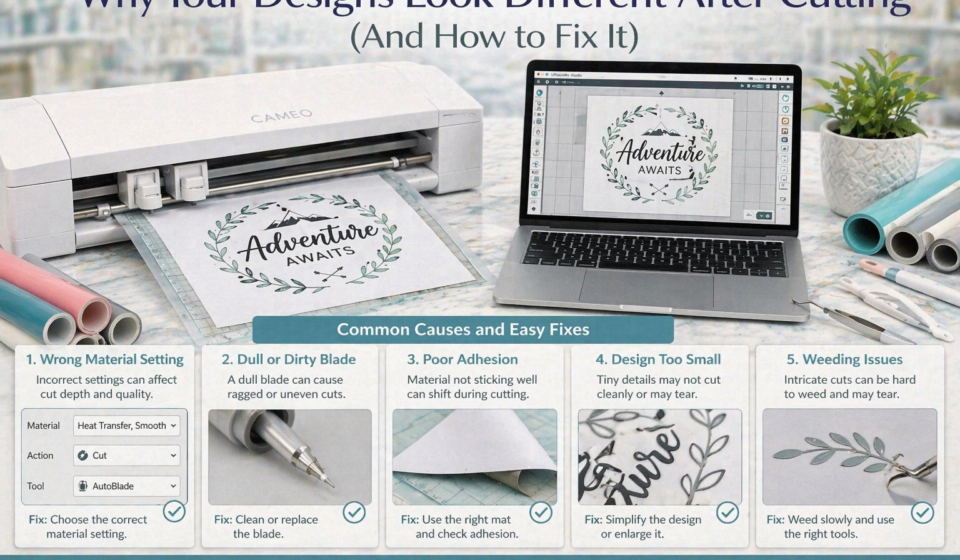

You’ve designed the perfect project in Silhouette Studio®. Everything looks clean, aligned, and exactly how you imagined it. But once the cut is complete… something feels off.
Maybe the spacing looks different.
Maybe the design isn’t as sharp.
Maybe parts didn’t turn out as expected.
If your final result doesn’t match what you saw on screen, don’t worry; this is a very common experience for Silhouette users.
The key is understanding that digital design and physical output behave differently. Once you know why these differences happen, you can easily fix them and achieve professional-quality results every time.
Let’s break it down.
Understanding the Silhouette Workflow
Before troubleshooting, it’s important to understand how your design moves through the Silhouette system:
- You create or import a design in Silhouette Studio®
- You adjust size, layout, and cut settings
- The design is sent to your Silhouette cutting machine
- The machine translates digital lines into physical cuts
The difference between “what you see” and “what you get” usually happens in the transition between digital design and physical material.
1. Your Design Looks Thinner or Thicker After Cutting
What’s Happening
Lines don’t appear as bold or as delicate as they did on screen.
Why It Happens
- Screen designs show filled shapes, but machines cut paths (lines)
- Thin fonts or fine details may not translate well physically
How to Fix It
- Use slightly thicker fonts or shapes
- Offset your design in Silhouette Studio® to add thickness
- Avoid ultra-thin lines for cutting projects
Tip: What looks good on screen isn’t always ideal for cutting.
2. Spacing Looks Off After Cutting
What’s Happening
Letters or elements look uneven or too far apart.
Why It Happens
- Kerning (letter spacing) may not be optimized
- Manual alignment issues
- Grouping inconsistencies
How to Fix It
- Adjust letter spacing manually in Silhouette Studio®
- Use “Weld” to combine text elements
- Zoom in and align carefully
Always preview your design closely before cutting.
3. Design Looks Distorted or Stretched
What’s Happening
Your final cut doesn’t match the proportions of your original design.
Why It Happens
- Incorrect resizing
- Locked aspect ratio not maintained
- Mat or page setup mismatch
How to Fix It
- Hold proportions when resizing
- Double-check dimensions in the Page Setup panel
- Use rulers and gridlines for accuracy
4. Corners and Details Look Rough
What’s Happening
Edges are jagged or not as smooth as expected.
Why It Happens
- Blade is dull or dirty
- Speed setting too high
- Complex designs with too many nodes
How to Fix It
- Replace or clean your blade
- Reduce cutting speed
- Simplify your design using fewer points
Slower cuts often produce cleaner results.
5. Design Pieces Don’t Fit Together Properly
What’s Happening
Layered or assembled designs don’t align as expected.
Why It Happens
- Slight scaling inconsistencies
- Material shifting during cutting
- Design not grouped properly
How to Fix It
- Group related elements before cutting
- Use registration marks for alignment
- Ensure material is firmly secured on the mat
6. Vinyl or Material Changes the Look
What’s Happening
Your design looks different due to the material itself.
Why It Happens
- Vinyl has thickness and texture
- Colors may appear different in real life
- Glossy vs. matte finishes affect perception
How to Fix It
- Choose materials that match your design intent
- Test different finishes (matte vs. glossy)
- Adjust design contrast for visibility
Material choice plays a huge role in final appearance.
7. Small Details Get Lost
What’s Happening
Tiny elements disappear or don’t cut cleanly.
Why It Happens
- Design too intricate for material
- Blade limitations
- Scale too small
How to Fix It
- Increase design size
- Simplify fine details
- Use appropriate materials (thinner vinyl for detail work)
Not all designs scale down well; adjust accordingly.
8. Print & Cut Designs Don’t Match Expectations
What’s Happening
Printed colors or cut edges don’t align with your design.
Why It Happens
- Printer color variation
- Registration misalignment
- Scaling issues
How to Fix It
- Print at 100% scale
- Calibrate Print & Cut settings
- Use high-quality print settings
9. Designs from External Sources Look Different
What’s Happening
Downloaded designs don’t match their preview images.
Why It Happens
- Missing fonts
- Incorrect file formatting
- Poor design quality
How to Fix It
- Replace missing fonts
- Adjust layout in Silhouette Studio®
- Use reliable sources
Design Store files are optimized, reducing this issue.
10. You Didn’t Account for Real-World Assembly
What’s Happening
Design looks good digitally, but awkward when assembled.
Why It Happens
- No spacing for layering
- Overlapping elements
- No consideration of material thickness
How to Fix It
- Add spacing between layers
- Test assembly with sample cuts
- Design with real-world use in mind
Why the Silhouette Design Store Helps Prevent These Issues
The Silhouette Design Store offers designs that are:
- Optimized for cutting
- Built with proper spacing and structure
- Tested for real-world use
This means:
- Better proportions
- Cleaner cuts
- More predictable results
For both beginners and advanced users, this reduces trial and error.
Best Practices for Consistent Results
1. Design for Cutting, Not Just Looks
Always consider how the design will translate physically.
2. Use Test Cuts
Test before committing to full projects.
3. Choose the Right Materials
Material quality impacts final results.
4. Keep Your Blade in Good Condition
A sharp blade ensures clean cuts.
5. Preview Before Cutting
Use the Send panel to check everything.
Common Beginner Mistakes
- Using designs that are too detailed
- Ignoring material limitations
- Skipping test cuts
- Not adjusting spacing
- Assuming digital = physical
Avoiding these will improve your results immediately.
From Digital Perfection to Physical Precision
It’s easy to expect your finished project to look exactly like your screen; but crafting always involves a translation process.
The more you understand:
- How blades cut
- How materials behave
- How designs scale
The better your results will become.
Final Thoughts: Design Smarter, Cut Better
If your designs look different after cutting, it doesn’t mean something is wrong; it just means something needs adjusting.
With Silhouette Studio®, Silhouette cutting machines, and the Silhouette Design Store, you have everything you need to bridge the gap between digital design and physical creation.
Every project teaches you something new.
Every adjustment improves your skill.
And with time, your designs won’t just look good on screen; they’ll look even better in real life.
Because mastering that transition is what turns a good crafter into a great one.